
|
Instructions for Using Templates
with Embedded Images
Each template collection is optimized for instant use using your software's embedded
image capabilities. Separate instructions for transferring the images to
your websites image folder, and modifying your HTML files can be found below.
-
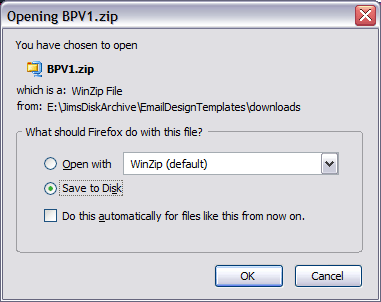
Download the zip File and save it to some directory
on your computer, each Collection has 12 templates
and their corresponding
images.
-
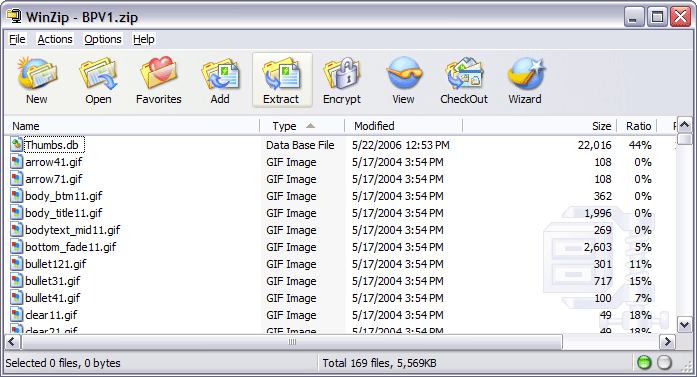
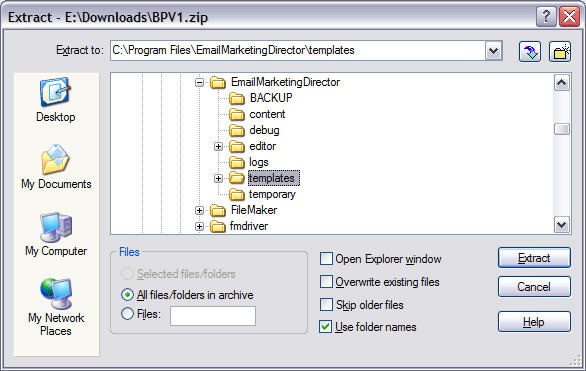
Open the zip file and Extract everything to the appropriate
program file:
To
Email Marketing Director program file, C:\Program
Files\EmailMarketingDirector\Templates
OR
To Campaign Enterprise program file, C:\Program Files\CampaignEnterprise\Templates.
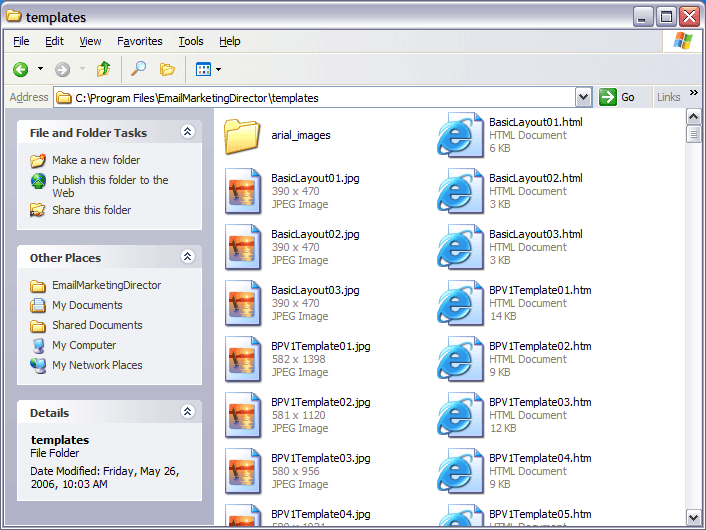
The arial_images folder will be created automatically and placed
inside the Templates folder, with all the necessary images.
-
Simply open your program and go to the templates area. You
will see the templates listed, and will be able to preview and
apply them right away. If you are using Email Marketing Director,
the preview image will spread across the window, do not be alarmed,
this is simply a preview.
Instructions for Using Templates
with Linked Images (hosted on a web server)
In order to use the templates with links to the images stored on the Internet,
the
template
itself
will
need to be modified slightly, and the images placed in a publicly accessible
web folder.
- Download the zip File and save it to some directory on your
computer, each Collection has 12 templates and their corresponding
images.
- Open the zip file and Extract everything
to the appropriate program file:
To Email Marketing Director program file, C:\Program Files\EmailMarketingDirector\Templates
OR
To Campaign Enterprise program file, C:\Program Files\CampaignEnterprise\Templates.
The arial_images folder will be created automatically and placed inside the Templates
folder, with all the necessary images.
- Open the HTML file and find the following image paths file:///C:/Program%20Files/EmailMarketingDirector/templates/arial_images/banner_top11.jpg
or file:///C:/Program%20Files/CampaignEnterprise10/templates/arial_images/banner_top11.jpg (These
are the default image path that points to the folder
which allows you to use embedded images.)
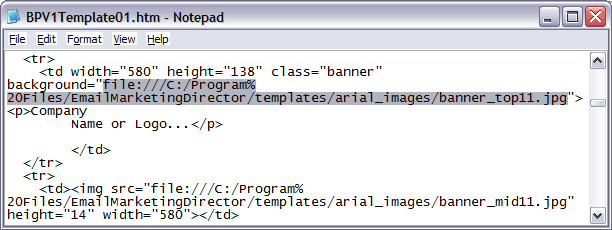
- Replace the first part "file:///C:/Program%20Files/EmailMarketingDirector/templates/arial_images/ in
front of the image name, with the FULL URL PATHWAY to your
website's image folder. For Example:
"http://www.domain.com/arial_images/".
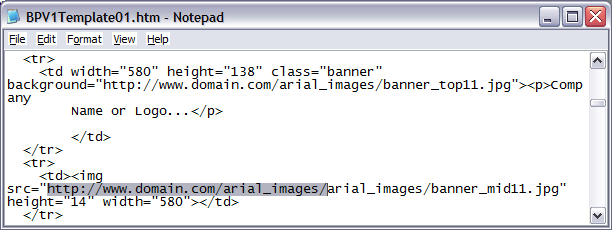
- Repeat for ALL images referenced in the HTML file.
- Post all images to a folder on the Internet somewhere
so they are publicly accessible. You should be able to
use the same process you typically use to post images to
your website.
Instructions
for Using Campaign Enterprise as the Image Server
-
Replace the image path, file:///C:/Program%20Files/templates/arial_images/
with http://www.domain.com:82/templates/arial_images/.
This allows the images to be served up by Campaign Enterprise
through the administration port.
-
For this option to work you must have the admin port point
to the public domain you set up in the Administration
> Manage Configuration area of Campaign Enterprise.
|
|
|
|
|
Tips
Tip 1
While using embedded images will get your emails campaigns up and running more
quickly there are drawbacks. Some email clients will not display embedded
images. Embedding may also slow down your campaign sending because it increases
your message size and takes a lot of processing. We highly recommend using
the web based image option.
Tip 2
Rather than changing all of your template files, you may want
to copy them. Have one for the embedded option, then have a second
one you can use for the web images.
Tip 3
Hang onto the downloaded zip file in a safe directory, you may
want to re-extract the templates or images at some time.
Tip 4
If you modify the template and save it in the template folder,
your changes are available for all your campaigns. |

|
|